「Xmonad」の版間の差分
同期 |
同期 |
||
| 5行目: | 5行目: | ||
[[ru:Xmonad]] |
[[ru:Xmonad]] |
||
[[tr:Xmonad Pencere Yöneticisi]] |
[[tr:Xmonad Pencere Yöneticisi]] |
||
[[zh- |
[[zh-hans:Xmonad]] |
||
{{Related articles start}} |
{{Related articles start}} |
||
{{Related|dzen}} |
{{Related|dzen}} |
||
| 12行目: | 12行目: | ||
{{Related|ウィンドウマネージャ}} |
{{Related|ウィンドウマネージャ}} |
||
{{Related articles end}} |
{{Related articles end}} |
||
[http://xmonad.org/ xmonad] は、Xのタイル型ウィンドウマネージャです。画面を分割し、重なり合わないようにウィンドウを配置することで、画面を最大限に活用することができます。ウィンドウマネージャの機能はキーボードから利用することができます (マウスはオプションです)。 |
[http://xmonad.org/ xmonad] は、[[X]] のタイル型[[ウィンドウマネージャ]]です。画面を分割し、重なり合わないようにウィンドウを配置することで、画面を最大限に活用することができます。ウィンドウマネージャの機能はキーボードから利用することができます (マウスはオプションです)。 |
||
xmonadは [ |
xmonad は [[Haskell]] で実装されており、設定や拡張も Haskell で書かれています。レイアウトやキーバインド、その他の設定はユーザーが設定ファイルに書き込むことで変更できます。 |
||
レイアウトは動的に適用され、各ワークスペース上で異なるレイアウトを使用することができます。Xinerama が完全にサポートされ、ウィンドウを複数のモニタで並べて表示することができます。 |
レイアウトは動的に適用され、各ワークスペース上で異なるレイアウトを使用することができます。Xinerama が完全にサポートされ、ウィンドウを複数のモニタで並べて表示することができます。 |
||
| 30行目: | 30行目: | ||
==Xmonad の起動== |
==Xmonad の起動== |
||
Xmonad を自動起動するには、起動スクリプトに {{Ic|xmonad}} コマンドを追加します (例えば、startx を使う場合 {{ic|~/.xinitrc}}、[[XDM]] ログインマネージャを使う場合 {{ic|~/.xsession}})。[[GDM]] や [[KDM]] を使う場合は、新しいセッションファイルを作成し、セッションメニューから xmonad を選択します。 |
Xmonad を自動起動するには、起動スクリプトに {{Ic|xmonad}} コマンドを追加します (例えば、startx を使う場合 {{ic|~/.xinitrc}}、[[XDM]] ログインマネージャを使う場合 {{ic|~/.xsession}})。[[GDM]] や [[KDM]] を使う場合は、新しいセッションファイルを作成し、セッションメニューから xmonad を選択します。 |
||
[[Xterm]] パッケージをインストールするか設定でターミナルエミュレータを変更しないと Xmonad の中で何もできなくなるので注意してください。 |
|||
{{Note|デフォルトではマウスカーソルは x です。left_ptr に設定するには起動スクリプト (例: {{ic|~/.xinitrc}}) に以下を追加します: {{ic|xsetroot -cursor_name left_ptr}}。}} |
{{Note|デフォルトではマウスカーソルは x です。left_ptr に設定するには起動スクリプト (例: {{ic|~/.xinitrc}}) に以下を追加します: {{ic|xsetroot -cursor_name left_ptr}}。}} |
||
| 70行目: | 72行目: | ||
import XMonad |
import XMonad |
||
main = |
main = xmonad def |
||
| ⚫ | |||
{ terminal = "urxvt" |
{ terminal = "urxvt" |
||
, modMask = mod4Mask |
, modMask = mod4Mask |
||
| 162行目: | 163行目: | ||
=== ワークスペースの数を増やす === |
=== ワークスペースの数を増やす === |
||
デフォルトでは、xmonad は9つのワークスペースを使います。以下のように拡張することでワークスペースの数を |
デフォルトでは、xmonad は9つのワークスペースを使います。以下のように拡張することでワークスペースの数を増やすことが可能です: |
||
{{hc|xmonad.hs| |
{{hc|xmonad.hs|<nowiki>import XMonad |
||
import XMonad.Util.EZConfig (additionalKeys) |
|||
-- (i, k) <- zip (XMonad.workspaces conf) [xK_1, xK_2, xK_3, xK_4, xK_5, xK_6, xK_7, xK_8, xK_9] |
|||
(i, k) <- zip (XMonad.workspaces conf) [xK_grave, xK_1, xK_2, xK_3, xK_4, xK_5, xK_6, xK_7, xK_8, xK_9, xK_0, xK_minus, xK_equal, xK_BackSpace]}} |
|||
main=do |
|||
| ⚫ | |||
{ ... |
|||
, workspaces = myWorkspaces |
|||
, ... |
|||
} `additionalKeys` myAdditionalKeys |
|||
myWorkspaces = ["1","2","3","4","5","6","7","8","9"] ++ (map snd myExtraWorkspaces) -- you can customize the names of the default workspaces by changing the list |
|||
myExtraWorkspaces = [(xK_0, "0")] -- list of (key, name) |
|||
myAdditionalKeys = |
|||
[ -- ... your other hotkeys ... |
|||
] ++ [ |
|||
((myModMask, key), (windows $ W.greedyView ws)) |
|||
| (key, ws) <- myExtraWorkspaces |
|||
] ++ [ |
|||
((myModMask .|. shiftMask, key), (windows $ W.shift ws)) |
|||
| (key, ws) <- myExtraWorkspaces |
|||
]</nowiki>}} |
|||
=== Conky やトレイアプリのための空間を作る === |
=== Conky やトレイアプリのための空間を作る === |
||
| 252行目: | 273行目: | ||
複数の方法が存在します: |
複数の方法が存在します: |
||
* |
* xmonad の拡張 [http://xmonad.org/xmonad-docs/xmonad-contrib/XMonad-Hooks-ServerMode.html XMonad.Hooks.ServerMode] を使用する。 |
||
* |
* {{Pkg|xdotool}} などのプログラムを使ってキーの押下をシミュレートする [http://ubuntuforums.org/archive/index.php/t-658040.html]。以下のコマンドは {{ic|Super+n}} の押下をシミュレートします: |
||
xdotool key Super+n |
xdotool key Super+n |
||
* desktopConfig や EwmhDesktops を設定している場合、使いやすいユーティリティとして {{Pkg|wmctrl}} が存在します。 |
|||
* {{Pkg|wmctrl}} -If you have desktopConfig or EwmhDesktops configured, this is a very easy to use and standard utility. |
|||
=== xmonad の中で他のウィンドウマネージャを起動 === |
=== xmonad の中で他のウィンドウマネージャを起動 === |
||
{{AUR|xmonad-git}} を使用している場合、xmonad の中から他のウィンドウマネージャを再起動することができます (2011年1月現在)。小さなスクリプトを書いて {{ic|~/.xmonad/xmonad.hs}} に設定を追加するだけです。スクリプトは以下のようになります: |
|||
If you are using {{AUR|xmonad-git}}, as of January of 2011, you can restart to another window manager from within xmonad. You just need to write a small script, and add stuff to your {{ic|~/.xmonad/xmonad.hs}}. Here is the script. |
|||
{{hc|~/bin/obtoxmd|<nowiki> |
{{hc|~/bin/obtoxmd|<nowiki> |
||
| 268行目: | 289行目: | ||
</nowiki>}} |
</nowiki>}} |
||
そして {{ic|~/.xmonad/xmonad.hs}} に以下のような設定を追加してください: |
|||
{{hc|~/.xmonad/xmonad.hs|<nowiki> |
{{hc|~/.xmonad/xmonad.hs|<nowiki> |
||
| 285行目: | 306行目: | ||
</nowiki>}} |
</nowiki>}} |
||
以下のキーバインドも追加する必要があります: |
|||
You also need to add the following key binding: |
|||
{{hc|~/xmonad/xmonad.hs|<nowiki> |
{{hc|~/xmonad/xmonad.hs|<nowiki> |
||
--Add a keybinding as follows: |
--Add a keybinding as follows: |
||
| 376行目: | 397行目: | ||
==== GNOME と Xmonad でコンポジット ==== |
==== GNOME と Xmonad でコンポジット ==== |
||
コンポジットを有効にすることで一部のアプリケーション (例: GNOME Do) の見た目が良くなります。ただし Xmonad のデフォルト設定ではコンポジットが有効になっていません。有効にするには {{ic|.desktop}} ファイルを作成してください ({{ic|/usr/share/xsessions/xmonad-gnome-session-composite.desktop}}): |
|||
{{bc|1= |
{{bc|1= |
||
[Desktop Entry] |
[Desktop Entry] |
||
| 385行目: | 406行目: | ||
Type=XSession |
Type=XSession |
||
}} |
}} |
||
| ⚫ | |||
| ⚫ | |||
{{bc|1= |
{{bc|1= |
||
| 393行目: | 413行目: | ||
}} |
}} |
||
ログイン時のセッションリストから "Xmonad GNOME (Composite)" を選択するようにしてください。詳しくは {{ic|man xcompmgr}} を参照。 |
|||
=== Xfce 4 と xmonad === |
=== Xfce 4 と xmonad === |
||
| 409行目: | 429行目: | ||
Also add an entry to ''Settings > Session and Startup > Application Autostart'' that runs {{ic|xmonad --replace}}. |
Also add an entry to ''Settings > Session and Startup > Application Autostart'' that runs {{ic|xmonad --replace}}. |
||
=== |
=== xmonad-i386-linux や xmonad-x86_64-linux が存在しない === |
||
Xmonad |
Xmonad は自動的に {{ic|xmonad-i386-linux}} ファイルを ({{ic|~/.xmonad/}} の中に) 作成します。作成されない場合、[http://haskell.org/haskellwiki/Xmonad/Config_archive xmonad wiki] から設定を入手するか [http://haskell.org/haskellwiki/Xmonad/Config_archive/John_Goerzen's_Configuration 自分で] 設定を書いてください。{{ic|.hs}} などのファイルを {{ic|~/.xmonad/}} に配置したら、フォルダの中から以下のコマンドを実行: |
||
xmonad --recompile |
xmonad --recompile |
||
これでファイルが出来るはずです。 |
|||
Now you should see the file. |
|||
{{Note|A reason you may get an error message saying that xmonad-x86_64-linux is missing is that {{Pkg|xmonad-contrib}} is not installed.}} |
{{Note|A reason you may get an error message saying that xmonad-x86_64-linux is missing is that {{Pkg|xmonad-contrib}} is not installed.}} |
||
| 420行目: | 440行目: | ||
=== Java アプリケーションの問題 === |
=== Java アプリケーションの問題 === |
||
標準の Java GUI ツールキットは、ハードコーディングされた "non-reparenting" ウィンドウマネージャのリストを持っています。 xmonad はそのリストに含まれておらず、稼働中にいくつかの問題が発生する Java アプリケーションがあります。 最も一般的な問題の一つは、Java アプリケーションが GUI をレンダリングする代わりに無地で灰色の box をレンダリングする、 "gray blobs" です。 |
標準の [[Java]] GUI ツールキットは、ハードコーディングされた "non-reparenting" ウィンドウマネージャのリストを持っています。 xmonad はそのリストに含まれておらず、稼働中にいくつかの問題が発生する Java アプリケーションがあります。 最も一般的な問題の一つは、Java アプリケーションが GUI をレンダリングする代わりに無地で灰色の box をレンダリングする、 "gray blobs" です。 |
||
これを解決できる方法はいくつかあります。 |
これを解決できる方法はいくつかあります。 |
||
* {{Pkg|jre7-openjdk}} や {{Pkg|jre8-openjdk}} ならば、 {{ic|/etc/profile.d/jre.sh}} に {{Ic|1=export _JAVA_AWT_WM_NONREPARENTING=1}} を追記してください。 そして、そのファイル {{ic|/etc/profile.d/jre.sh}} を source するか、再ログインしてください。 |
* {{Pkg|jre7-openjdk}} や {{Pkg|jre8-openjdk}} ならば、 {{ic|/etc/profile.d/jre.sh}} に {{Ic|1=export _JAVA_AWT_WM_NONREPARENTING=1}} を追記してください。 そして、そのファイル {{ic|/etc/profile.d/jre.sh}} を source するか、再ログインしてください。 |
||
* Oracle の JRE/JDK ならば、 |
* Oracle の JRE/JDK ならば、[http://xmonad.org/xmonad-docs/xmonad-contrib/XMonad-Hooks-SetWMName.html SetWMName.] を使用してください。 しかし、その効果は {{ic|XMonad.Hooks.EwmhDesktops}} も使用すると打ち消されてしまうかもしれません。 この場合は、 |
||
>> setWMName "LG3D" |
>> setWMName "LG3D" |
||
| 479行目: | 499行目: | ||
-windowed |
-windowed |
||
manage フックを使用してゲームのウィンドウをフロートさせる方法もあります。例えば、Half-Life の場合なら以下の行を使います: |
|||
Another solution is to float the window of the game using the manage hook. For example, the following line can be used for Half-Life: |
|||
className =? "hl_linux" --> doFloat |
|||
== 参照 == |
== 参照 == |
||
2017年1月28日 (土) 00:17時点における版
xmonad は、X のタイル型ウィンドウマネージャです。画面を分割し、重なり合わないようにウィンドウを配置することで、画面を最大限に活用することができます。ウィンドウマネージャの機能はキーボードから利用することができます (マウスはオプションです)。
xmonad は Haskell で実装されており、設定や拡張も Haskell で書かれています。レイアウトやキーバインド、その他の設定はユーザーが設定ファイルに書き込むことで変更できます。
レイアウトは動的に適用され、各ワークスペース上で異なるレイアウトを使用することができます。Xinerama が完全にサポートされ、ウィンドウを複数のモニタで並べて表示することができます。
詳細は、xmonad のウェブサイトをご覧ください: http://xmonad.org/
インストール
xmonad と xmonad-contrib (サードパーティ製のタイリングアルゴリズムや設定スクリプトなどが入っています) は公式リポジトリから利用可能です。
また、開発版の xmonad-gitAUR や xmonad-contrib-gitAUR をインストールすることもできます。
Xmonad の起動
Xmonad を自動起動するには、起動スクリプトに xmonad コマンドを追加します (例えば、startx を使う場合 ~/.xinitrc、XDM ログインマネージャを使う場合 ~/.xsession)。GDM や KDM を使う場合は、新しいセッションファイルを作成し、セッションメニューから xmonad を選択します。
Xterm パッケージをインストールするか設定でターミナルエミュレータを変更しないと Xmonad の中で何もできなくなるので注意してください。
~/.xinitrc) に以下を追加します: xsetroot -cursor_name left_ptr。また、標準では US キーボードレイアウトなので、必要に応じて変更します。例えば日本語キーボードレイアウトは ~/.xinitrc に以下を追加します。キーボードレイアウトの設定についてはここを参照してください。:
$ setxkbmap -layout jp
例 ~/.xinitrc:
# set the cursor
xsetroot -cursor_name left_ptr
# set Japanese keyboard layout
setxkbmap -layout jp
# start xmonad
exec xmonad
もし、起動しない場合はホームディレクトリに .xmonad ディレクトリがあるか確認してください。もしない場合は作成します。
$ mkdir ~/.xmonad
詳細については、xinitrc を参照してください。
設定
Xmonad ユーザーは ~/.xmonad/xmonad.hs を修正することで Xmonad をカスタマイズすることができます。再コンパイルは Mod+q ショートカットでその場で自動的にされます。
ディレクトリ ~/.xmonad がない場合は xmonad --recompile を実行してディレクトリを作成します。
Xmonad のデフォルトの設定は非常に優秀で、xmonad.hs がなくても実行することができます。そのため、xmonad --recompile を実行したあとでも ~/.xmonad/xmonad.hs は多分無いでしょう。あなたがそれをカスタマイズしたいのならば、ファイルを作成しそれを編集していきましょう。
Xmonad の設定ファイルは Haskell で書かれているため、プログラマーでないとなかなか設定が難しいと思われます。設定例や詳細方法は以下のページを参照して下さい:
- xmonad wiki
- xmonad config archive
- xmonad FAQ
- Arch Linux フォーラムスレッド
最善の方法は組み込みの関数 defaultConfig を使用し、必要なところを ~/.xmonad/xmonad.hs で変更やカスタマイズをすることです。
次のように xmonad.hs を書くことによって設定します:
import XMonad

main = xmonad def
    { terminal    = "urxvt"
    , modMask     = mod4Mask
    , borderWidth = 3
    }
デフォルトの設定に端末とボーダーの設定を上書きします (その他の設定は defaultConfig 関数から継承されます)。
より複雑になるにつれ、それぞれ別の関数で設定しメイン関数内でそれらの関数を呼び出したほうが便利です。これによって、大規模なカスタマイズをするときに保守が簡易になります。
上記の簡単な xmonad.hs は次のように書くことができます:
import XMonad

main = do
  xmonad $ defaultConfig
    { terminal    = myTerminal
    , modMask     = myModMask
    , borderWidth = myBorderWidth
    }

myTerminal    = "urxvt"
myModMask     = mod4Mask -- Win key or Super_L
myBorderWidth = 3
また、Haskell では import が最初にあれば、関数や {} 内の順序は重要ではありません。
以下は この 設定ファイルの一部です。これは一般的な機能の一例です。
{
  terminal           = myTerminal,
  focusFollowsMouse  = myFocusFollowsMouse,
  borderWidth        = myBorderWidth,
  modMask            = myModMask,
  -- numlockMask deprecated in 0.9.1
  -- numlockMask        = myNumlockMask,
  workspaces         = myWorkspaces,
  normalBorderColor  = myNormalBorderColor,
  focusedBorderColor = myFocusedBorderColor,
  -- key bindings
  keys               = myKeys,
  mouseBindings      = myMouseBindings,
  -- hooks, layouts
  layoutHook         = myLayout,
  manageHook         = myManageHook,
  handleEventHook    = myEventHook,
  logHook            = myLogHook,
  startupHook        = myStartupHook
}
パッケージにも xmonad.hs が入っており、これは xmonad.hs の最新の公式サンプルです。/usr/share/ の中にアーキテクチャとバージョン別に置かれています (例: find /usr/share -name xmonad.hs)。
デスクトップ設定のベース
xmonad-contrib にはデスクトップとして使うためのデフォルト設定があります。Chromium など新しいプログラムで発生する問題を解決します。
以下のように追加してください:
import XMonad
import XMonad.Config.Desktop

baseConfig = desktopConfig

main = xmonad baseConfig
    { terminal    = "urxvt"
    , modMask     = mod4Mask
    }
Xmonad の終了
Mod+Shift+q で xmonad を終了させることができます。Mod はデフォルトでは Alt になっています。
Tips and tricks
X-Selection-Paste
Xmonad でのキーボードによる操作は X-Selection-Paste のキーボードショートカットを使うことで更に良くなります。
また、XMonad.Util.Paste に存在する "pasteSelection" 関数を以下のようにキーにバインドすることもできます:
xmonad.hs
  -- X-selection-paste buffer
  , ((0, xK_Insert), pasteSelection)
"Insert" キーを押すとアクティブウィンドウにマウスバッファが貼り付けられるようになります。
補助アプリケーション
xmonad を保管するユーティリティはいくつも存在します。以下は最もよく使われているユーティリティの一部です:
- xmobar — 軽量な、テキストベースの、Haskell で書かれたステータスバー。
- xmonad-log-applet — GNOME, MATE, Xfce パネル用のアプレット。
- https://github.com/alexkay/xmonad-log-applet || xmonad-log-applet-xfce4-gitAUR, xmonad-log-applet-gnome-gitAUR
ワークスペースの数を増やす
デフォルトでは、xmonad は9つのワークスペースを使います。以下のように拡張することでワークスペースの数を増やすことが可能です:
xmonad.hs
import XMonad
import XMonad.Util.EZConfig (additionalKeys)

main=do
  xmonad $ defaultConfig
    { ...
    , workspaces = myWorkspaces
    , ...
    } `additionalKeys` myAdditionalKeys

myWorkspaces = ["1","2","3","4","5","6","7","8","9"] ++ (map snd myExtraWorkspaces) -- you can customize the names of the default workspaces by changing the list

myExtraWorkspaces = [(xK_0, "0")] -- list of (key, name)

myAdditionalKeys =
    [ -- ... your other hotkeys ...
    ] ++ [
        ((myModMask, key), (windows $ W.greedyView ws))
        | (key, ws) <- myExtraWorkspaces
    ] ++ [
        ((myModMask .|. shiftMask, key), (windows $ W.shift ws))
        | (key, ws) <- myExtraWorkspaces
    ]
Conky やトレイアプリのための空間を作る
Wrap your layouts with avoidStruts from XMonad.Hooks.ManageDocks for automatic dock/panel/trayer spacing:
import XMonad
import XMonad.Hooks.ManageDocks

main=do
  xmonad $ defaultConfig
    { ...
    , layoutHook=avoidStruts $ layoutHook defaultConfig
    , manageHook=manageHook defaultConfig <+> manageDocks
    , ...
    }
If you ever want to toggle the gaps, this action can be added to your key bindings:
,((modMask x, xK_b ), sendMessage ToggleStruts)
xmonad で xmobar を使う
xmobar は xmonad で使うことを想定して作られた軽量でミニマル、テキストベースのバーです。xmonad で xmobar を使うには、xmonad パッケージに加えて2つのパッケージが必要になります: 公式リポジトリの xmonad-contrib と xmobar です。また、公式の xmobar パッケージの代わりに AUR の xmobar-gitAUR を使うこともできます。
Here we will start xmobar from within xmonad, which reloads xmobar whenever you reload xmonad.
~/.xmonad/xmonad.hs をお好きなエディタで開いて、以下のどちらかの設定を行なってください:
クイック設定
Common imports:
import XMonad
import XMonad.Hooks.DynamicLog
The xmobar action starts xmobar and returns a modified configuration that includes all of the options described in #More configurable.
main = xmonad =<< xmobar defaultConfig { modMask = mod4Mask {- or any other configurations here ... -}}
複雑な設定
As of xmonad(-contrib) 0.9, there is a new statusBar function in XMonad.Hooks.DynamicLog. It allows you to use your own configuration for:
- The command used to execute the bar
- The PP that determines what is being written to the bar
- The key binding to toggle the gap for the bar
The following is an example of how to use it:
~/.xmonad/xmonad.hs
-- Imports.
import XMonad
import XMonad.Hooks.DynamicLog

-- The main function.
main = xmonad =<< statusBar myBar myPP toggleStrutsKey myConfig

-- Command to launch the bar.
myBar = "xmobar"

-- Custom PP, configure it as you like. It determines what is being written to the bar.
myPP = xmobarPP { ppCurrent = xmobarColor "#429942" "" . wrap "<" ">" }

-- Key binding to toggle the gap for the bar.
toggleStrutsKey XConfig {XMonad.modMask = modMask} = (modMask, xK_b)

-- Main configuration, override the defaults to your liking.
myConfig = defaultConfig { modMask = mod4Mask }
XMobar の設定を確認
The template and default xmobarrc contains this.
At last, open up ~/.xmobarrc and make sure you have StdinReader in the template and run the plugin. E.g.
~/.xmobarrc
Config { ...
       , commands = [ Run StdinReader .... ]
         ...
       , template = " %StdinReader% ... "
       }
Now, all you should have to do is either to start, or restart, xmonad.
外部スクリプトで xmonad を制御
複数の方法が存在します:
- xmonad の拡張 XMonad.Hooks.ServerMode を使用する。
- xdotool などのプログラムを使ってキーの押下をシミュレートする [1]。以下のコマンドは
Super+nの押下をシミュレートします:
xdotool key Super+n
- desktopConfig や EwmhDesktops を設定している場合、使いやすいユーティリティとして wmctrl が存在します。
xmonad の中で他のウィンドウマネージャを起動
xmonad-gitAUR を使用している場合、xmonad の中から他のウィンドウマネージャを再起動することができます (2011年1月現在)。小さなスクリプトを書いて ~/.xmonad/xmonad.hs に設定を追加するだけです。スクリプトは以下のようになります:
~/bin/obtoxmd
#!/bin/sh
openbox
xmonad
そして ~/.xmonad/xmonad.hs に以下のような設定を追加してください:
~/.xmonad/xmonad.hs
import XMonad
--You need to add this import
import XMonad.Util.Replace

main do
    -- And this "replace"
    replace
    xmonad $ defaultConfig
    {
    --Add the usual here
    }
以下のキーバインドも追加する必要があります:
~/xmonad/xmonad.hs
--Add a keybinding as follows:
((modm .|. shiftMask, xK_o     ), restart "/home/abijr/bin/obtoxmd" True)
Just remember to add a comma before or after and change the path to your actual script path. Now just Mod+q (restart xmonad to refresh the config), and then hit Mod+Shift+o and you should have Openbox running with the same windows open as in xmonad. To return to xmonad you should just exit Openbox. Here is a link to adamvo's ~/.xmonad/xmonad.hs which uses this setup Adamvo's xmonad.hs
KDE と xmonad
xmonad の wiki には KDE で xmonad を実行 する方法が書かれています。
It also might be a good idea to set a global keyboard shortcut in KDE to start xmonad in case it is accidentally killed or closed.
Skype 用の IM レイアウト
新しいバージョンの Skype 用に IM レイアウトを作成するには、以下のコードを使用:
xmonad.hs
myIMLayout = withIM (1%7) skype Grid
    where
      skype = And (ClassName "Skype") (Role "")
設定例
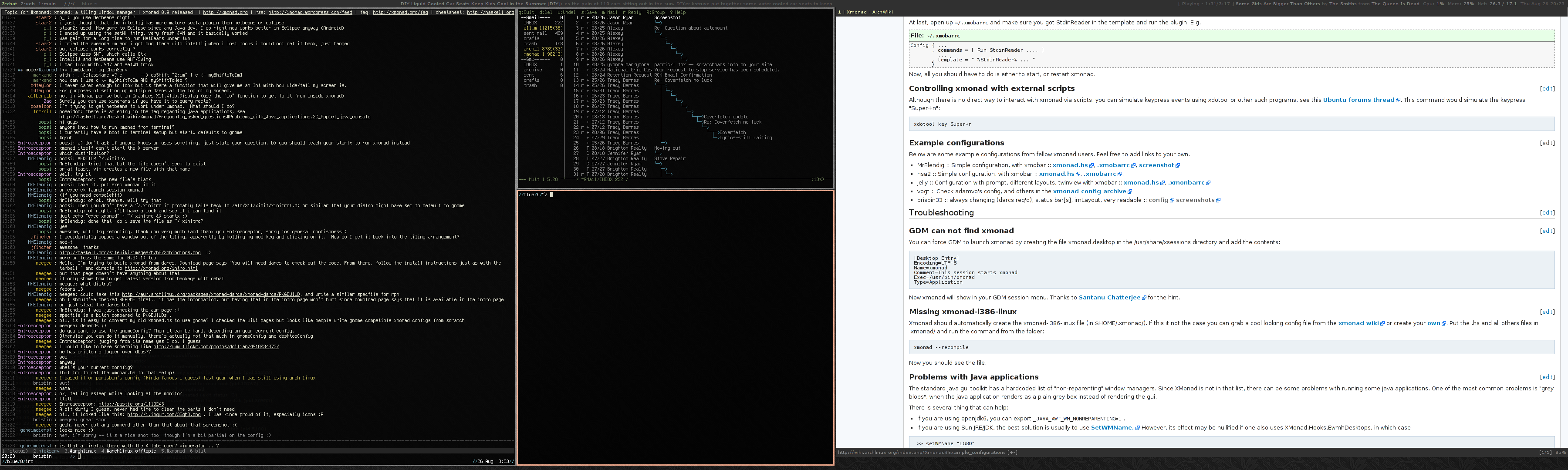
以下は xmonad ユーザーの設定例です。あなたの設定も自由に追加してください。
- brisbin33 :: simple, useful, readable :: config screenshot
- jelly :: Configuration with prompt, different layouts, twinview with xmobar :: xmonad.hs
- MrElendig :: Simple configuration, with xmobar :: xmonad.hs, .xmobarrc, screenshot.
- thayer :: A minimal mouse-friendly config ideal for netbooks :: configs screenshot
- vicfryzel :: Beautiful and usable xmonad configuration, along with xmobar configuration, xinitrc, dmenu, and other scripts that make xmonad more usable. :: git repository, screenshot.
- vogt :: Check out adamvo's config and many others in the official Xmonad/Config archive
- wulax :: Example of using xmonad inside Xfce. Contains two layouts for GIMP. :: xmonad.hs, screenshot.


トラブルシューティング
GNOME 3 と xmonad
GNOME 3 から、GNOME で xmonad を使うには設定を追加する必要があります。
AUR から xmonad-gnome3AUR をインストールするか、手動で設定してください:
gnome-session で使用するための xmonad のセッションファイルを追加 (/usr/share/gnome-session/sessions/xmonad.session):
[GNOME Session]
Name=Xmonad session
RequiredComponents=gnome-panel;gnome-settings-daemon;
RequiredProviders=windowmanager;notifications;
DefaultProvider-windowmanager=xmonad
DefaultProvider-notifications=notification-daemon
GDM のデスクトップファイルを作成 (/usr/share/xsessions/xmonad-gnome-session.desktop):
[Desktop Entry]
Name=Xmonad GNOME
Comment=Tiling window manager
TryExec=/usr/bin/gnome-session
Exec=gnome-session --session=xmonad
Type=XSession
以下のファイルを作成・編集 (/usr/share/applications/xmonad.desktop):
[Desktop Entry]
Type=Application
Encoding=UTF-8
Name=Xmonad
Exec=xmonad
NoDisplay=true
X-GNOME-WMName=Xmonad
X-GNOME-Autostart-Phase=WindowManager
X-GNOME-Provides=windowmanager
X-GNOME-Autostart-Notify=false
最後に、xmonad-contrib をインストールして ~/.xmonad/xmonad.hs を以下のように作成・編集:
import XMonad
import XMonad.Config.Gnome

main = xmonad gnomeConfig
これで GDM のセッションリストに Xmonad が表示され、gnome-session で扱えるようになります。
GNOME と Xmonad でコンポジット
コンポジットを有効にすることで一部のアプリケーション (例: GNOME Do) の見た目が良くなります。ただし Xmonad のデフォルト設定ではコンポジットが有効になっていません。有効にするには .desktop ファイルを作成してください (/usr/share/xsessions/xmonad-gnome-session-composite.desktop):
[Desktop Entry]
Name=Xmonad GNOME (Composite)
Comment=Tiling window manager
TryExec=/usr/bin/gnome-session
Exec=/usr/sbin/gnome-xmonad-composite
Type=XSession
そして /usr/sbin/gnome-xmonad-composite を作成して chmod +x /usr/sbin/gnome-xmonad-composite を実行:
xcompmgr &
gnome-session --session=xmonad
ログイン時のセッションリストから "Xmonad GNOME (Composite)" を選択するようにしてください。詳しくは man xcompmgr を参照。
Xfce 4 と xmonad
Use xfceConfig instead of defaultConfig after importing XMonad.Config.Xfce in ~/.xmonad/xmonad.hs, e.g. adapting the minimal config above:
import XMonad
import XMonad.Config.Xfce
main = xmonad xfceConfig
    { terminal    = "urxvt"
    , modMask     = mod4Mask
    }
Also add an entry to Settings > Session and Startup > Application Autostart that runs xmonad --replace.
xmonad-i386-linux や xmonad-x86_64-linux が存在しない
Xmonad は自動的に xmonad-i386-linux ファイルを (~/.xmonad/ の中に) 作成します。作成されない場合、xmonad wiki から設定を入手するか 自分で 設定を書いてください。.hs などのファイルを ~/.xmonad/ に配置したら、フォルダの中から以下のコマンドを実行:
xmonad --recompile
これでファイルが出来るはずです。
Java アプリケーションの問題
標準の Java GUI ツールキットは、ハードコーディングされた "non-reparenting" ウィンドウマネージャのリストを持っています。 xmonad はそのリストに含まれておらず、稼働中にいくつかの問題が発生する Java アプリケーションがあります。 最も一般的な問題の一つは、Java アプリケーションが GUI をレンダリングする代わりに無地で灰色の box をレンダリングする、 "gray blobs" です。
これを解決できる方法はいくつかあります。
- jre7-openjdk や jre8-openjdk ならば、
/etc/profile.d/jre.shにexport _JAVA_AWT_WM_NONREPARENTING=1を追記してください。 そして、そのファイル/etc/profile.d/jre.shを source するか、再ログインしてください。 - Oracle の JRE/JDK ならば、SetWMName. を使用してください。 しかし、その効果は
XMonad.Hooks.EwmhDesktopsも使用すると打ち消されてしまうかもしれません。 この場合は、
>> setWMName "LG3D"
を LogHook に追記することで解決されるでしょう。
より多くの情報を得るためには、 [2] を参照してください。
gvim やターミナルの底部の空きスペース
スペースを背景色と合わせる方法は Vim#gVim ウィンドウの底部の空きスペース を見て下さい。
rxvt-unicode の場合、rxvt-unicode-patchedAUR が使えます。
You can also configure xmonad to respect size hints, but this will leave a gap instead. See the documentation on Xmonad.Layout.LayoutHints.
Chromium/Chrome がフルスクリーンにならない
F11 を押したときに Chrome がフルスクリーンにならない場合、xmonad-contrib パッケージに含まれている XMonad.Hooks.EwmhDesktops 拡張を使ってください。~/.xmonad/xmonad.hs に以下の import 文を追加するだけです:
import XMonad.Hooks.EwmhDesktops
それから適当な場所に handleEventHook = fullscreenEventHook を追加してください。例:
...
        xmonad $ defaultConfig
            { modMask            = mod4Mask
            , handleEventHook    = fullscreenEventHook
            }
...
xmonad の再コンパイル・再起動後に、Chromium で F11 (fullscreen) が使えるようになるはずです。
マルチタッチ / touchegg
Touchégg polls the window manager for the _NET_CLIENT_LIST (in order to fetch a list of windows it should listen for mouse events on.) By default, xmonad does not supply this property. To enable this, use the XMonad.Hooks.EwmhDesktops extension found in the xmonad-contrib package.
azerty キーボードレイアウトのキーバインドの問題
azerty レイアウトのキーボードを使っている場合、特定のキーバインドに問題が発生します。XMonad.Config.Azerty モジュールを使うことで問題は解決します。
GNOME 3 の mod4+p で dmenu が起動するかわりにディスプレイの設定が変更されてしまう
gnome-control-center のディスプレイ設定を切り替える必要がない場合、ユーザーで以下を実行することで xrandr プラグインで Super+p を使用するのを止めさせることができます:
$ dconf write /org/gnome/settings-daemon/plugins/xrandr/active false
VirtualBox でフォーカスしたボーダーの問題
Virtualbox には既知の問題 (Ticket #6479) が存在し、フォーカスされたウィンドウのボーダーに問題が発生します。xcompmgr などのコンポジットマネージャをインストールして vboxvideo の挙動を上書きすることで解決できます。
Steam のゲーム (Half-Life, Left 4 Dead, …) と xmonad
Source エンジンを使っているゲーム (Half-Life など) で問題が発生することがあります。ゲームが起動しなかったり黒い画面から進まないときは、ウィンドウモードで起動してみてください: ライブラリのゲームを右クリックして、起動オプションに以下のように入力 ([3] を参照):
-windowed
manage フックを使用してゲームのウィンドウをフロートさせる方法もあります。例えば、Half-Life の場合なら以下の行を使います:
className =? "hl_linux" --> doFloat
参照
- xmonad - xmonad 公式ウェブサイト
- xmonad.hs - テンプレート xmonad.hs
- xmonad: a guided tour
- Share your xmonad desktop!
- xmonad hacking thread